Loginless Beta Onboarding
Setup your Migration Account
Create a New Poly Lens Account
- Go to https://lens.poly.com and login, or setup a login. See Login for detailed information.
- Select Account > Manage Account > Add New.
Note: Poly recommends naming your Account using the following convention: 'your company name' PMP to Lens. For example:
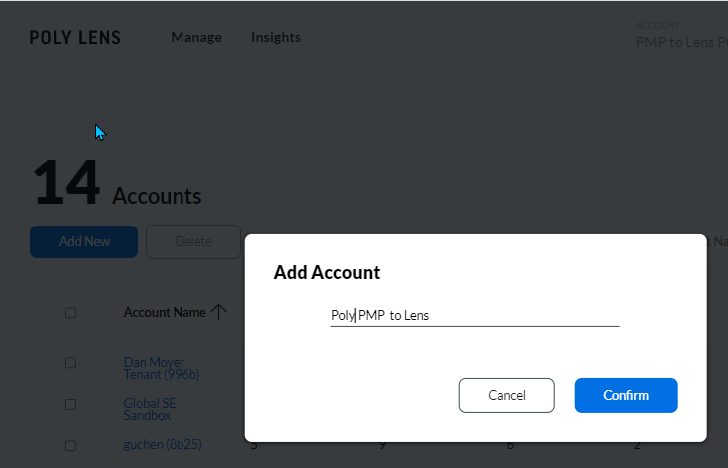
Note: This Account must be treated as a temporary / sandbox environment. During the POC, it may be necessary to delete the Account and start over with a new Account.
Invite Poly Team to the Newly Created Account
- Select Account > Manage Account > Poly PMP to Lens.
- Select Account Members > Add New.
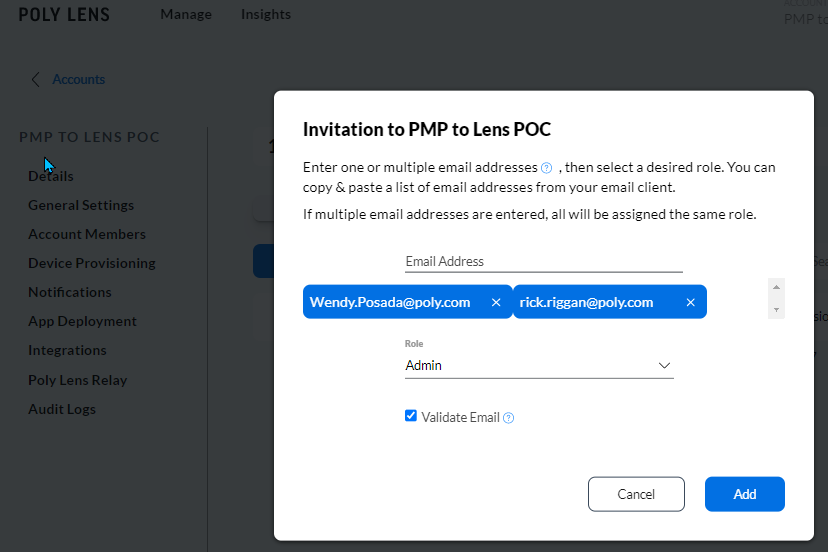
Invite the following Poly users with the Admin role to your Account.
- Paul Adrighetti @ paul.andrighetti@poly.com
- Michael Won @ michael.won@poly.com
Note: Poly will add additional users to this Account to expand our ability to assist with the migration and address customer questions.
Once the invitation to your new Account is received, Poly will enable your Account to gain access to POC features specific to the migration. Please allow two business days for this step. Poly will notify you when this step has been completed.
Deploy ‘Loginless’ Version of Poly Lens Desktop Application
- Early access documentation can be found at Integrations.
- Create a Client Token. See Integrations - Client Tokens for detailed information.
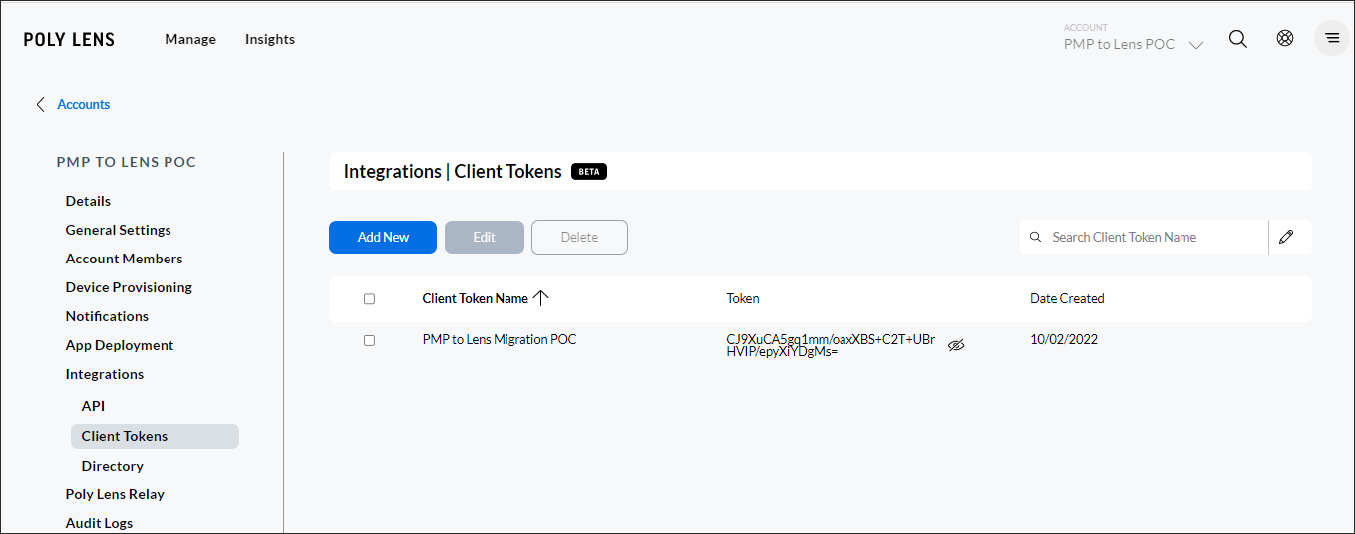
Download the Lens Desktop Client.
Note: The Loginless feature is only supported by the MS Windows version of the Lens Desktop client.- Select ACCOUNT menu > Manage Accounts.
- Select an Account from the list.
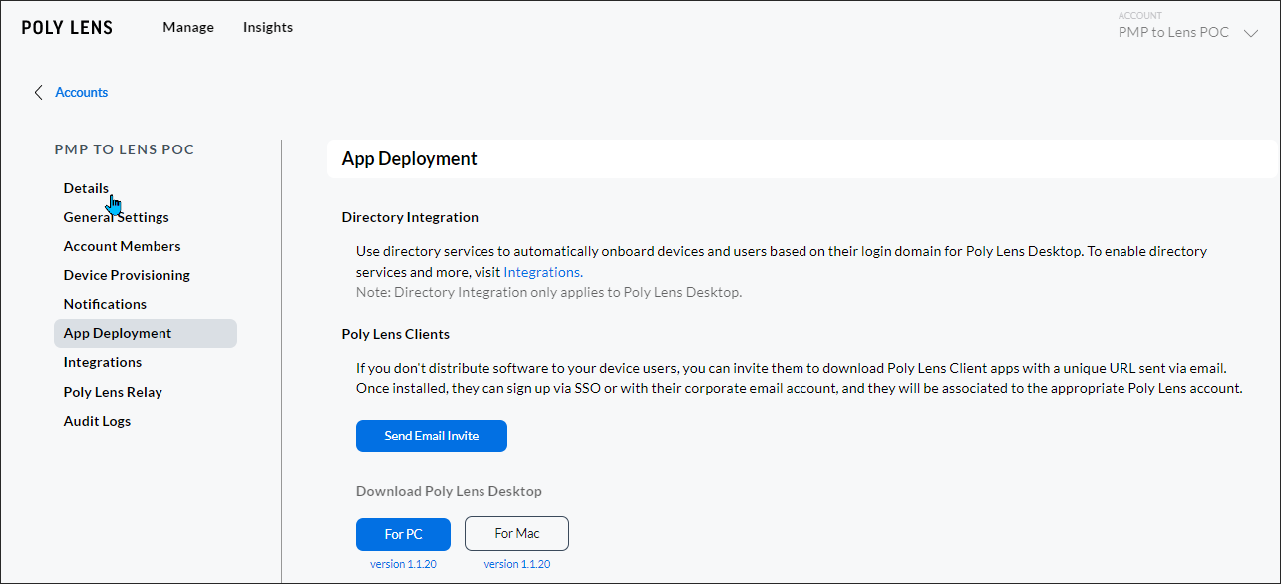
- Select App Deployment from the side tabs.
- Select Download Poly Lens Desktop > For PC.
Note: Must be version 1.1.21 or greater.
Package the Poly Lens Desktop client for deployment by Microsoft System Center Configuration (SCCM). See Loginless Configuration with Poly Lens Desktop App.
Note: Before installing the Loginless version of the Lens Desktop, the IT Admin should first uninstall all instances of either the Plantronics PLT Hub or Poly Lens Desktop client software.Deploy the Lens Desktop client to a small set of test computers.
Releases Notes
2022-Oct-12
NODATA=1 Deployment Option
Enabling the NODATA option disables ALL Lens cloud-side functionality for the management of deployed Loginless clients and users. Impacted functionality for Loginless Clients/Users includes:
- Manage: Inventory, Actions, Policy Sites, Rooms Device Users & Group, Insights
- Insights: Priority
Manage > Device Users page
The Loginless client (aka user) data is not shown on this page. Future releases will include the display of a client record representing the user and their linked devices. Device Groups are currently not usable for Loginless client deployments until this enhancement is released.